Creating Better Product Information with Blue Raven
The Create a Product feature in Blue Raven is designed to help you quickly and consistently generate WooCommerce product content that matches your brand’s tone, structure, and intent. Instead of starting from scratch every time, Blue Raven leverages the information you provide during the Brand Options setup to ensure your products follow a consistent voice and layout — which is vital for brand trust and shopper confidence.
- Step 1 : Create your Brandability
- Step 2 : Describe your New Product
- Step 3: Manage Products in “My Products”
Describe your New Product
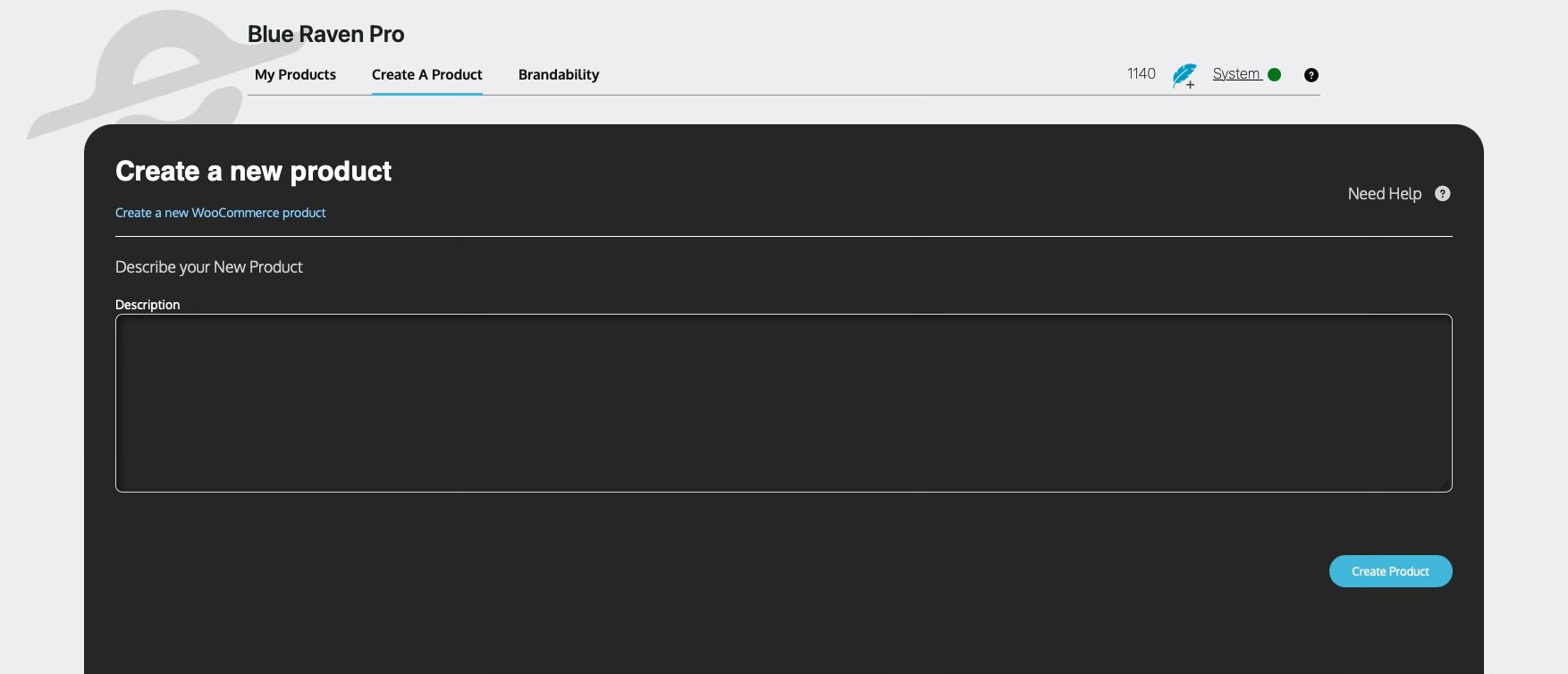
With your Brandability profile set, you’re ready to create products:
Add your Description
When creating a new product in Blue Raven, the Description field is where you tell Blue Raven what makes your product special. Include details about your product, focusing on these points:
- What the product does: Explain its purpose and main function.
- Key features: Highlight standout functionalities or components.
- Benefits to the customer: How it solves a problem or improves the user’s life.
- Unique selling points: Anything that sets it apart, such as free shipping, hassle-free returns, or premium materials.
- Why choose this product: Reasons someone would pick it over competitors.
- Any Other Information: Anything that will help Blue Raven be more specific about what you are trying to sell
You don’t need to write a long essay, even a short summary or bullet points works. The more specific and accurate your input, the better the generated results will be. Blue Raven will expand and optimize your description for you.
That said, it’s always important to double-check what’s generated. Blue Raven gives you the tools to streamline product creation and enhance your site, but your oversight is essential. Great websites and strong businesses don’t happen by accident they’re built through thoughtful input, time, and attention to detail. Blue Raven is here to help you move faster and smarter, but you’re still a key part of the magic.
Product Generation

It might take a minute for Blue Raven to generate your product, so please be patient and let it work. If it takes longer than 3 minutes, something may have gone wrong:
- Check if your feather count has decreased.
- Check the My Products Table to see if the product is still in Pending.
Next steps:
- If your feather count has dropped but the product failed to generate, contact Support.
- If your feather count has not dropped, you can Try Again with the generation.

Keep an eye on the Status, we use servers, and sometimes servers can go down unexpectedly. Unfortunately, this might happen while Blue Raven is helping you.
More about Blue Raven Status here <- NEED LINK
Creating a Product uses 20 Feathers
More about Feathers here <- NEED LINK
Manage Products in “My Products”
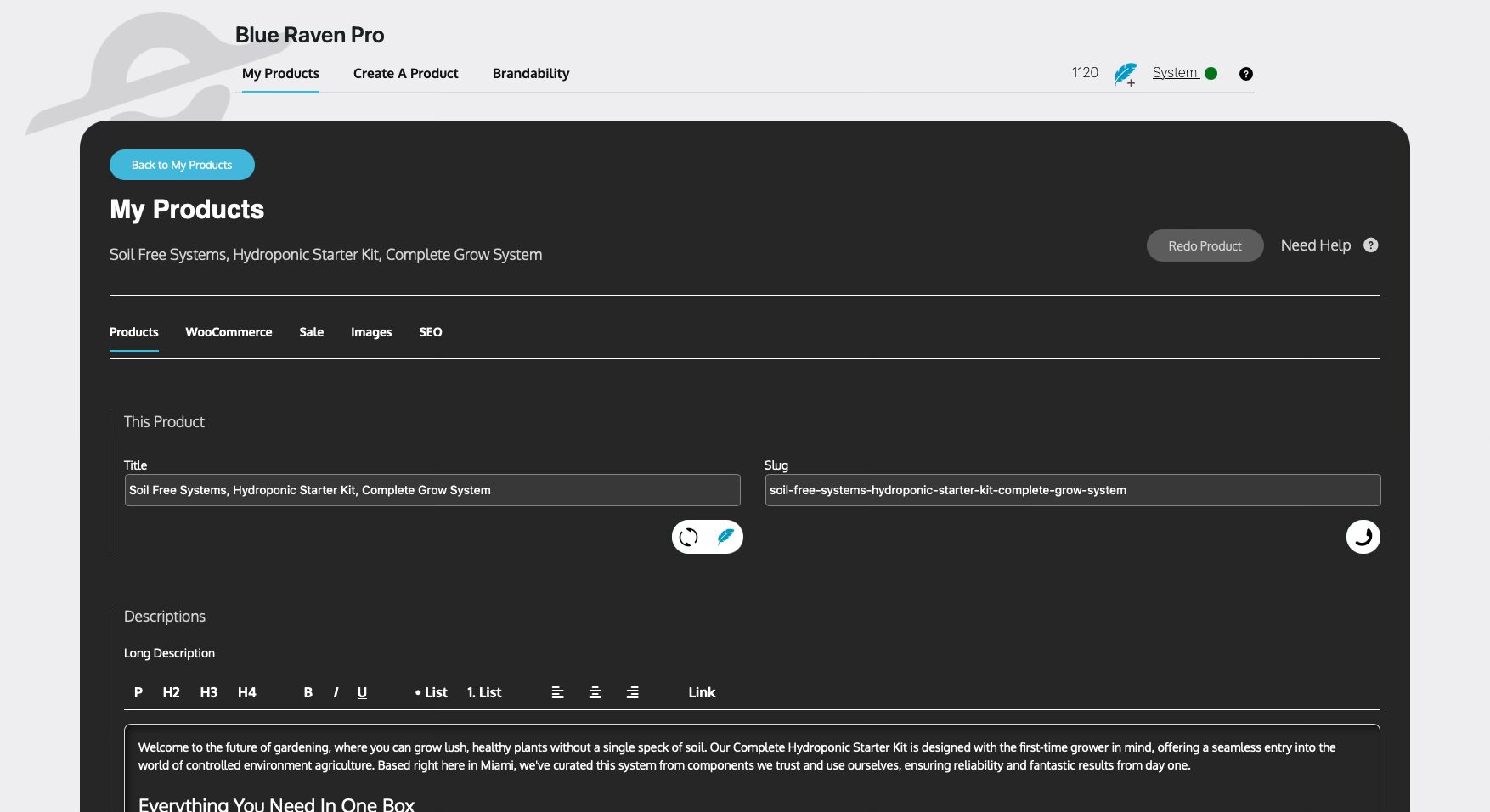
Once your product has loaded, you can start editing right away. If you come back later, you can also edit it from the My Products tab.
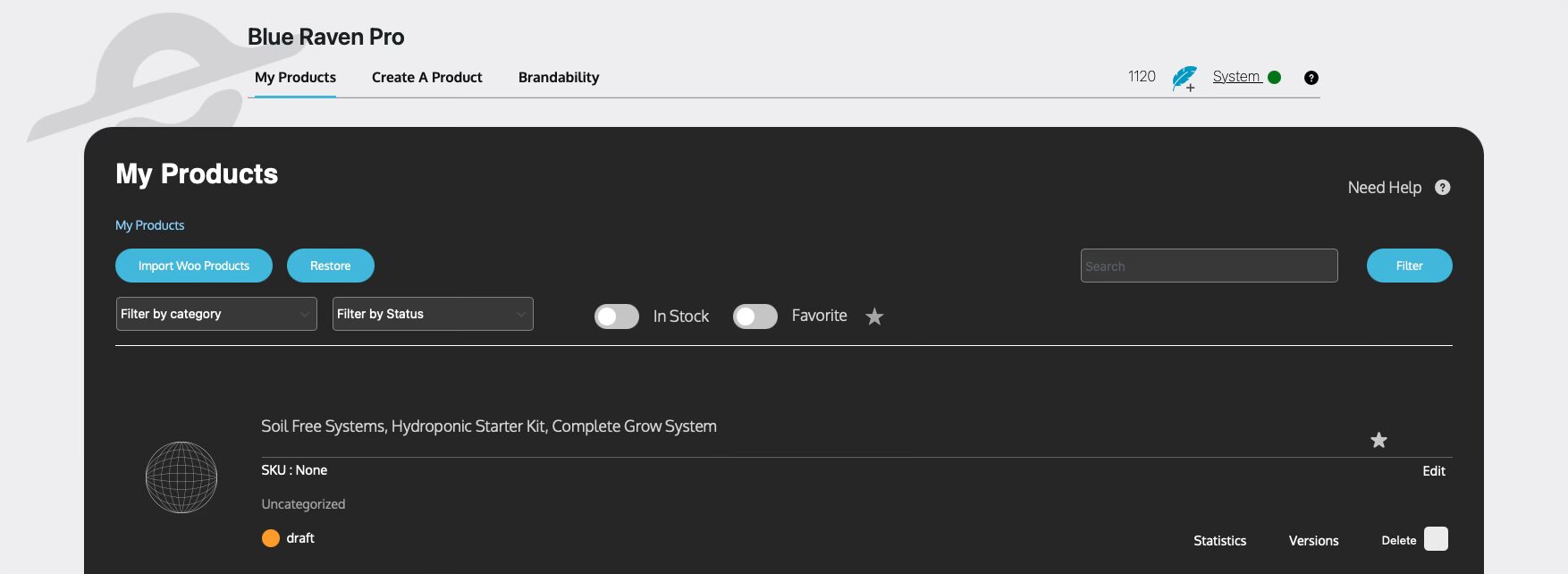
This is where you complete the final setup:
- Upload and assign product images
- Set SKUs and manage stock
- Define shipping options and product types
- Assign attributes
- Blue Raven automatically handles schema markup and SEO metadata
The My Products tab functions like a Simplified / Modern WooCommerce product editor — designed to make life easier without sacrificing flexibility.