Redirects – Blue Raven Knowledge Base
The Redirects tool (found under Blue Raven > Tools > Redirects) helps prevent 404 errors when you delete or disable WordPress pages, posts, or WooCommerce products. Instead of showing visitors a “Page Not Found” error, Blue Raven automatically sends them to a fallback URL you choose.
This feature is available in both the free and Pro versions of Blue Raven. No feathers are used.
Why Use Redirects?
When you remove content like an old blog post about “Winter Gardening Tips” or a discontinued product anyone clicking a bookmark, social link, or search result will hit a dead end. That hurts user experience and SEO.
A redirect:
- Keeps visitors on your site
- Preserves some SEO value from inbound links
- Reduces bounce rates
- Looks professional (no broken pages)
Without redirects, every deleted item becomes a silent leak in your traffic.
How It Works (Blue Raven 1.3)
In this version, Blue Raven offers type-based redirects:
- When a post is deleted → redirect to one URL (e.g., https://mydomain.com
/blog) - When a page is deleted → redirect to one URL (e.g., https://mydomain.com
/about) - When a product is deleted → redirect to one URL (e.g., https://mydomain.com
/shop)
You set one destination per content type. All deleted items of that type go to the same place.
⚠️ This is a fallback redirect only. It does not support custom redirects for individual URLs (planned for future versions).
Supported Content Types
| Type | What Triggers a Redirect |
|---|---|
| Posts | When a blog post is moved to trash or permanently deleted, or unpublished by setting it to Draft or Pending Preview etc. |
| Pages | When a standard page is deleted, or unpublished |
| Products | When a WooCommerce product is trashed or removed, or unpublished |
Redirects apply when the page is no longer published. Editing a slug or changing a URL manually does not trigger this system.
How to Set Up Redirects
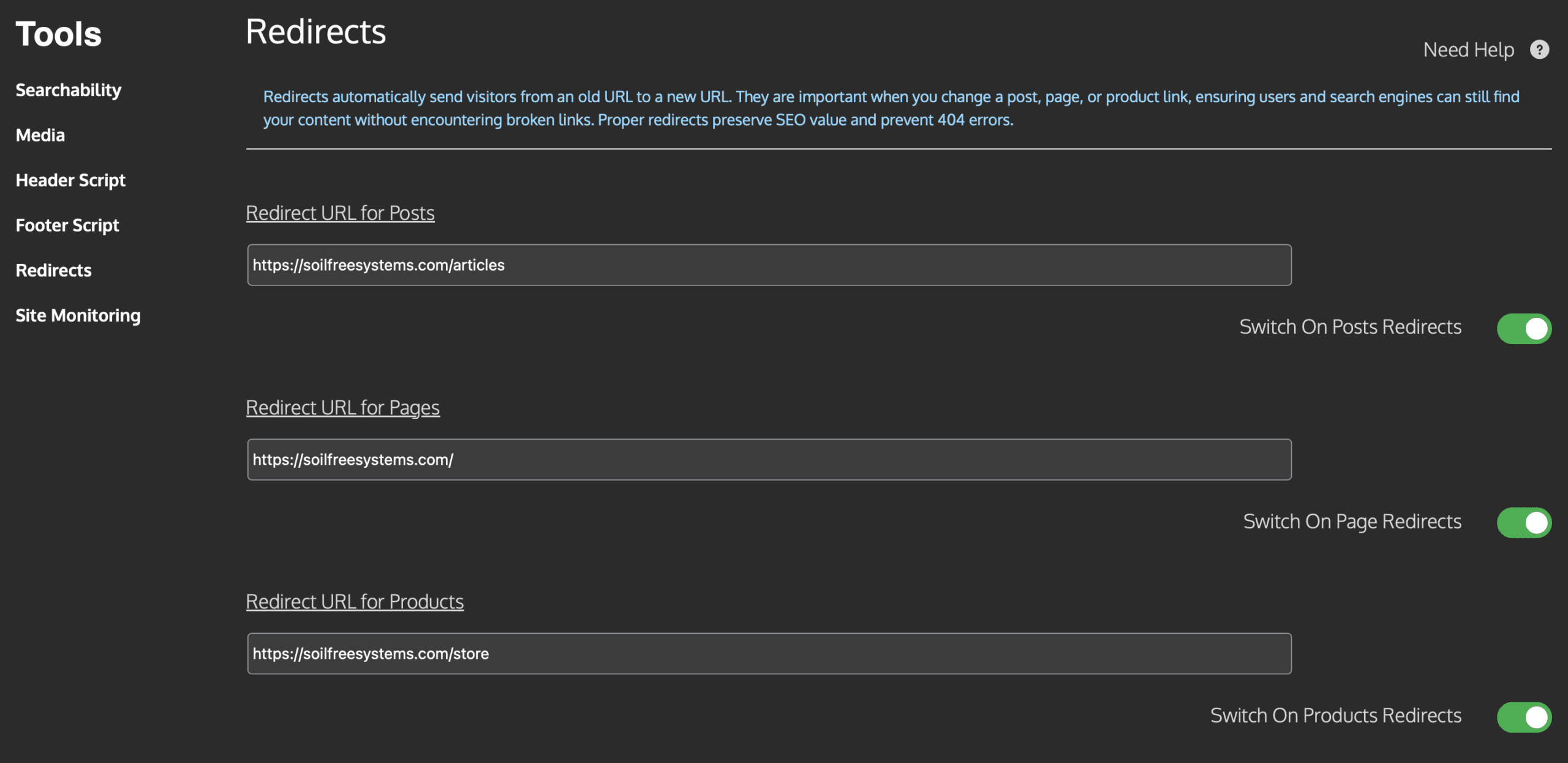
- In your WordPress dashboard, go to Blue Raven > Tools > Redirects.
- For each content type you want to protect:
- Enter the destination URL path (e.g.
https://yoursite.com/blog) - Toggle “Switch On [Type] Redirects” to enabled
- Enter the destination URL path (e.g.
- Click Save Settings.
Example setup:
- Posts: Redirect to https://yoursite.com
/blog - Pages: Redirect to https://yoursite.com
/(homepage) - Products: Redirect to https://yoursite.com
/shop
Use full URLs not just the relative path.
Best Practices
- Choose relevant destinations: Sending deleted product pages to your shop is better than sending them to the homepage.
- Avoid redirecting everything to the homepage it confuses users and search engines.
- Monitor 404s in Google Search Console to identify high value pages that might need manual redirects later.
- If you plan to restore a post or product, or change it from Draft back to Published the original URL comes back into effect and no longer triggers the redirect.
Limitations (as of Blue Raven 1.3)
- Only one redirect URL per content type (no per-item control).
- Does not handle renamed URLs only deletions.
Future updates will let you redirect specific products to categories or tags for more relevant experiences.
Troubleshooting
- Redirect not working?
Confirm the post/page/product was deleted or unpublished and that you are not logged in as the admin, you can still view Draft pages as the admin. - Accidentally redirected something important?
Restore the original item from trash and the redirect won’t fire once it’s back.
Need Help?
Got ideas for smarter redirects? Submit a feature request.
Configure redirects at Blue Raven > Tools > Redirects.