Header Script & Footer Script – Blue Raven Knowledge Base
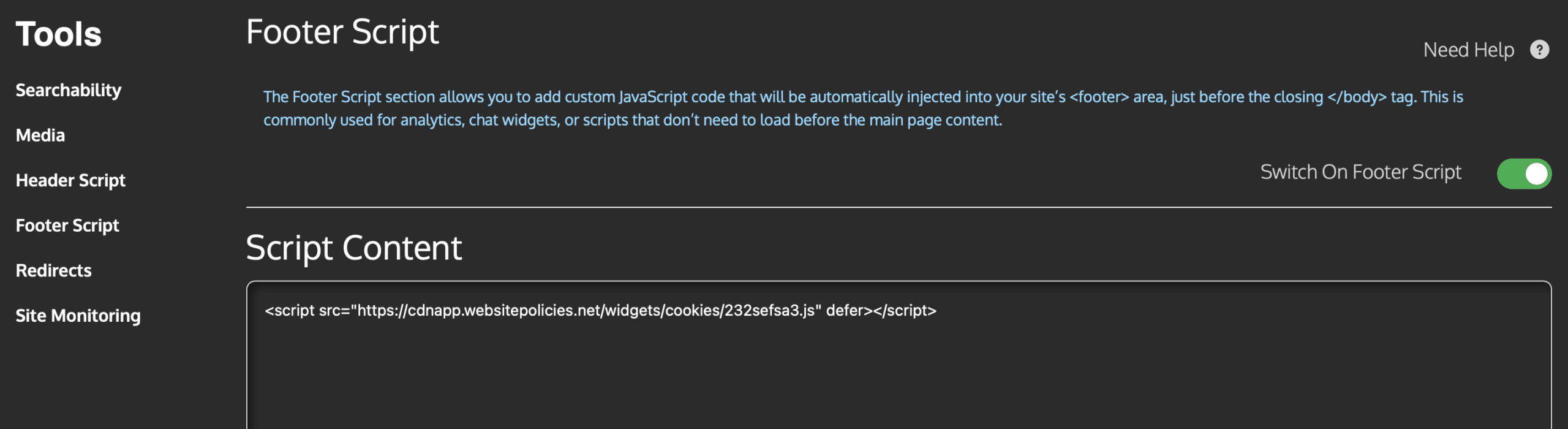
The Header Script and Footer Script tools (found under Blue Raven > Tools > Header Script and Blue Raven > Tools > Footer Script) let you safely add custom JavaScript or tracking code to your WordPress site without editing your theme files.
This is useful for adding third-party integrations like cookie consent banners, email popups, live chat widgets, or custom analytics while keeping your site stable and update safe.
Note: These features are available in both the free and Pro versions of Blue Raven. No feathers are used.
Why Use Header or Footer Scripts?
Editing your theme’s header.php or footer.php directly can break your site, or lose your changes when the theme updates. Blue Raven injects your code automatically, so it:
- Survives theme updates
- Doesn’t require coding access
- Can be toggled on/off instantly
Header Script vs. Footer Script: What’s the Difference?
Header Script
- Loads in the
<head>section of your site, before the page content. - Best for scripts that need to run early, such as:
- Cookie consent banners (e.g., Cookiebot, Osano)
- Tag managers that load other scripts
- Security or verification tags
- Scripts that modify how the page renders
⚠️ Avoid placing heavy or slow loading scripts here. They can delay page display.
Footer Script
- Loads just before the closing
</body>tag, after the page content. - Ideal for scripts that:
- Don’t affect page layout
- Track user behavior after the page loads
- Power non essential features like popups or chat widgets
Examples:
- Mailchimp signup popups
- Facebook Pixel (if not using Analytics Tags)
- Hotjar or Microsoft Clarity (if not using Analytics Tags)
- Custom conversion tracking
✅ Most third party scripts should go in the footer unless their documentation says otherwise.
How to Add a Script
- In your WordPress dashboard, go to Blue Raven > Tools > Header Script (or Footer Script).
- Paste your full script including the
<script>tags. - Click Save Settings.
- Your script will now load on every page of your site.
<script>
  console.log("This runs in the header");
</script>
🔒 Only add scripts from trusted sources. Malicious code can compromise your site.
Common Use Cases
| Purpose | Recommended Location | Notes |
|---|---|---|
| Cookie consent popup | Header | Must load before content |
| Email newsletter popup | Footer | Non-essential; avoid blocking render |
| Custom analytics (not in Analytics Tags) | Footer | Reduces impact on speed |
| A/B testing script | Header | Needs to run before page renders |
| Chat widget (e.g., Tidio, Crisp) | Footer | Loads after page is ready |
Best Practices
- Always test after adding a new script check your site on desktop and mobile.
- Remove unused scripts they slow down your site even if invisible.
- Don’t duplicate scripts if you’re already using Blue Raven’s Analytics Tags tool, don’t add Google Analytics again here.
- Back up your site before adding complex custom code.
Troubleshooting
- Script not working?
View your site’s page source (right-click > “View Page Source”) and search for your code to confirm it’s present. - Site broken or blank?
Go to Blue Raven > Tools > Header/Footer Script, delete the script, and save. This will restore your site immediately. - Popups appearing twice?
You may have the same script added in multiple places (e.g., both here and in a plugin). Remove duplicates.
Need Help?
Have a suggestion? Submit a feature request.
Access the tools at Blue Raven > Tools > Header Script and Footer Script.
Not sure where a script should go? Check the provider’s documentation they usually specify “header” or “footer.”