Media Tools for Alt Text and Optimization
The Media Tool included in Blue Raven Pro (found under Blue Raven Pro > Tools > Media) helps you audit, optimize, and improve the accessibility of all images on your WordPress site. Whether you’re using the free version or Blue Raven Pro, this tool gives you instant visibility into common image issues and Pro users can fix them in seconds.
The Free Version of Blue Raven is available on the WordPress Plugin Directory.
What the Media Tool Does
The Media Tool scans your entire media library and provides actionable insights for every image, including:
- ✅ Missing alt text
- ⚠️ File size too large
- 🔁 Likely duplicate images
- 📏 Incorrect dimensions for web use
This helps you maintain a fast, accessible, and SEO friendly website without needing technical expertise.
Feature Comparison: Free vs. Pro
| Capability | Blue Raven (Free) | Blue Raven Pro |
|---|---|---|
| View images missing alt text | ✅ | ✅ |
| See oversized or duplicate images | ✅ | ✅ |
| Auto-generate alt text | ❌ | ✅ (uses feathers) |
| Bulk-generate alt text | ❌ | ✅ (uses feathers) |
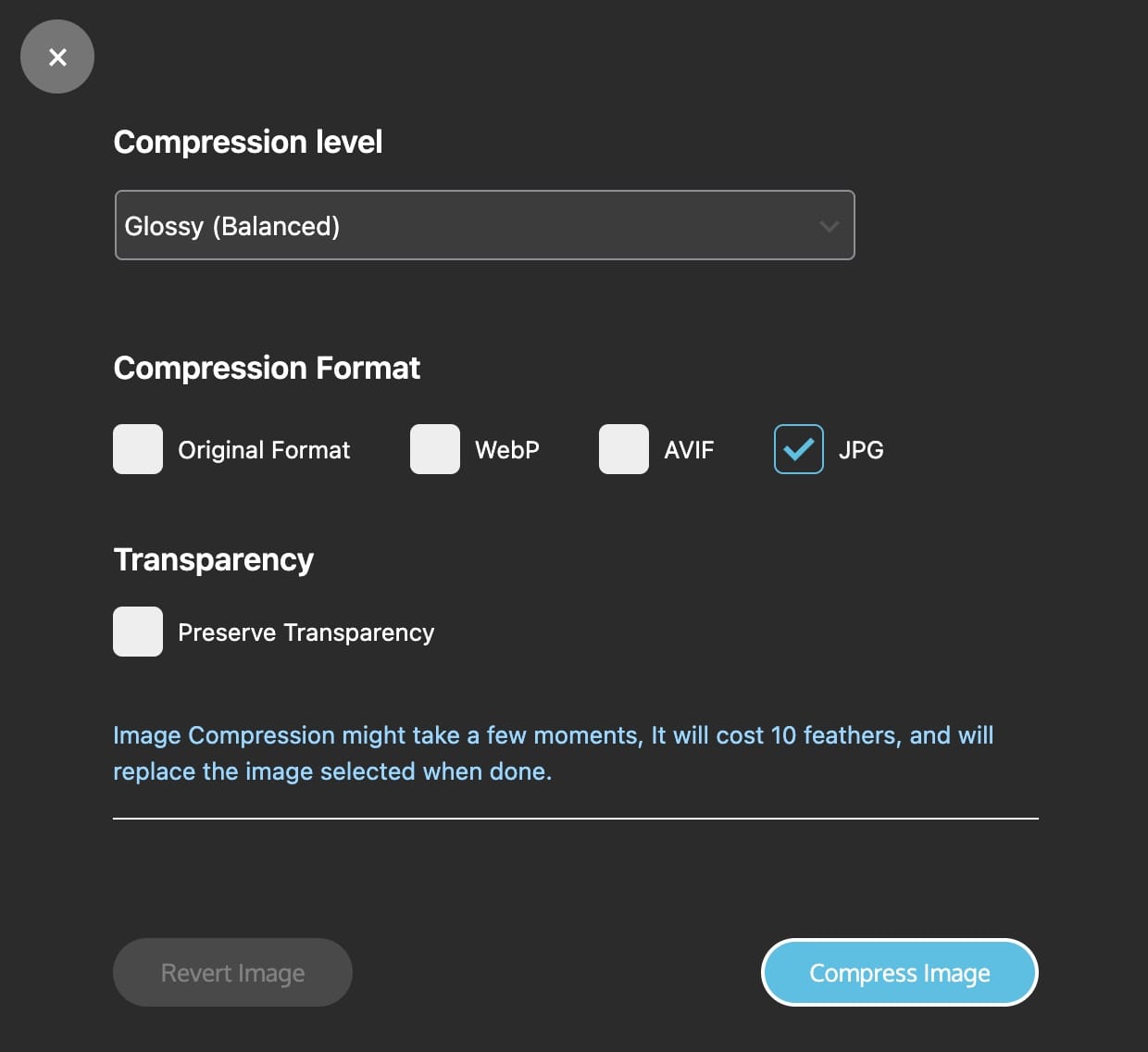
| Compress images (lossless/lossy/glossy) | ❌ | ✅ (uses feathers) |
| One-click image optimization | ❌ | ✅ |
Note: Generating alt text or compressing images require feathers, Blue Raven’s token system. These are included with active Pro subscriptions and replenished monthly.
Using the Media Tool
- In your WordPress dashboard, go to Blue Raven Pro > Tools > Media.
- The tool displays all images with detected issues, grouped by type (e.g., “Missing Alt Text,” “Large File Size”).
- For each image:
- Free users: View details and manually edit in WordPress Media Library.
- Pro users:
- Click the blue feather icon next to any image to auto-generate alt text.
- Use Compress to reduce file size with your preferred quality setting.
- Click Optimize All to process every flagged image at once (feathers will be deducted accordingly).
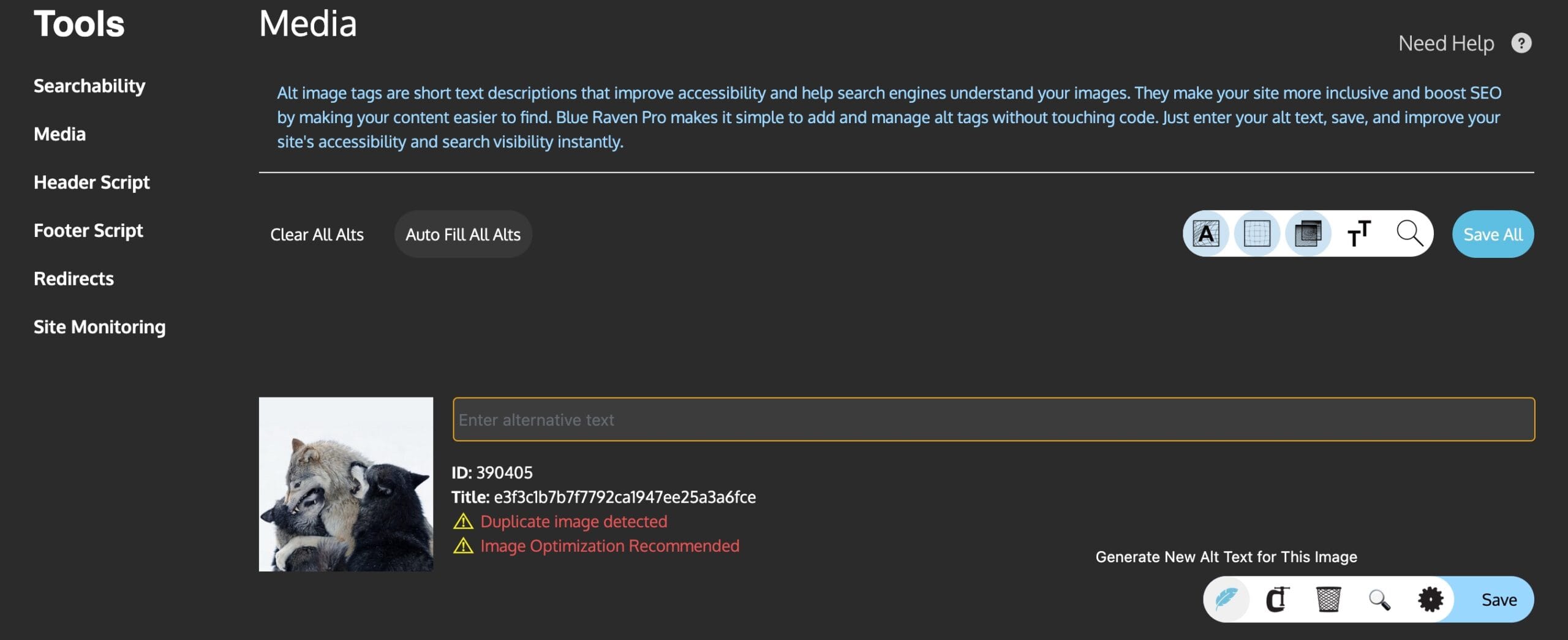
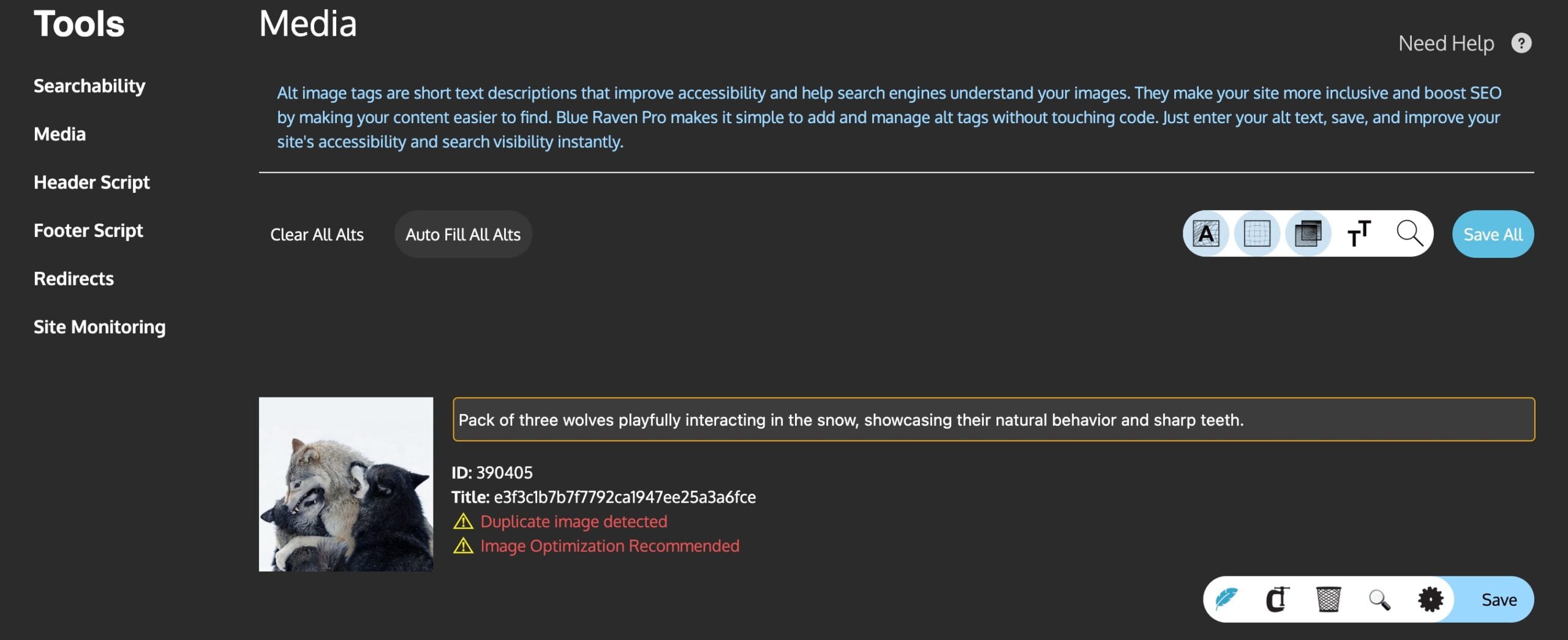
Images are automatically removed from the issue list once resolved.
Understanding Feathers in the Media Tool
- Feathers are consumed when using AI or optimization features in the Media Tool.
- Alt text generation: 5 feathers per image.
- Image compression: 10 feathers per image (regardless of compression type).
- Your monthly feather allowance renews with your Pro subscription.
- Run out? You can buy one-time Feather Packs from your Blue Raven account dashboard.
The free plugin never uses feathers it only reports issues and allows you to manually add Alt Text, or Optimise images via other plugins. No actions are performed automatically.
Best Practices
- Review generated alt text to ensure it matches your image’s context (e.g., a product photo should include product name and key attributes). You can use the generated Alt text as a first draft, or as the final Alt Text, its’ up to you.
- Compress large images especially above 300 KB to improve page load speed.
- Delete true duplicates to save storage and avoid SEO confusion, but ensure that you update the post, page or product so that you don’t have missing images in your published pages.
Troubleshooting
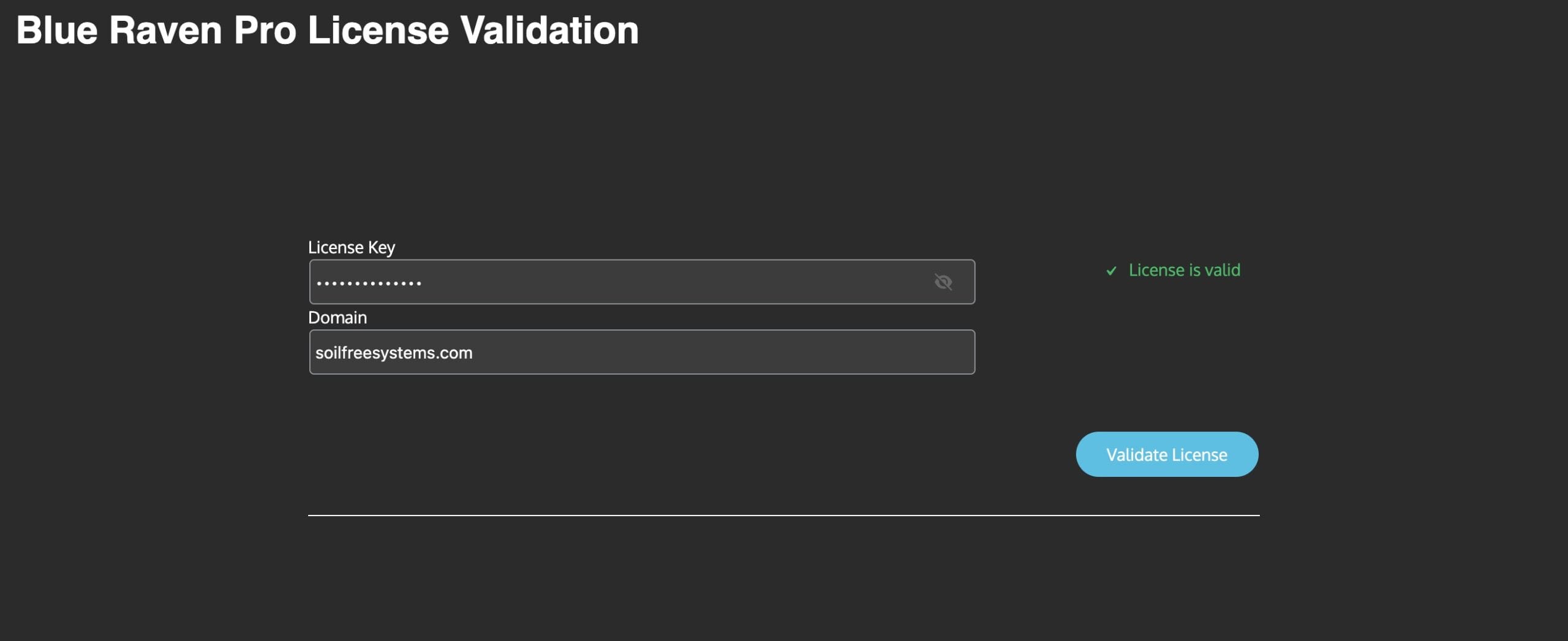
- “Feather icon not appearing?” → Ensure you’re using Blue Raven Pro with an active license and available feathers.
- “Image still shows as missing alt text after editing?” → Refresh the Media Tool page—it doesn’t update in real time.
- “Compression didn’t reduce file size much?” → Try switching from lossless to lossy or glossy for greater savings.
Need More?
- Feature request? Submit one here.
- Not seeing expected results? Verify your license status at Blue Raven > Settings > User.