How to Use the Page Meta Tool in Blue Raven
WordPress doesn’t give you a way to add meta descriptions to pages out of the box. That means your “About Us” page, service pages, or location pages whether you’re a yoga studio in Bangkok, a law firm in London, or a tour company in New York could be showing up in search results with a random snippet or nothing at all, although Google and other search engines may dynamically add some meta if its missing it may not be quite what you want.
Blue Raven fixes this with the Page Meta tool, found under Tools > Searchability. It shows you which pages are missing meta data and lets you add or generate it right inside Blue Raven.
What the Page Meta Tool Shows
Open Page Meta and you’ll see every published page on your site. For each one, Blue Raven lists:
- Page title
- Current meta description if any
- Status: “Set” or “Missing”
You can:
- Search by page title
- Filter to show only pages with missing meta
This works on any WordPress site. No WooCommerce needed. (Product meta is handled separately in the My Products section of Blue Raven.)
Free vs Pro Capabilities
Blue Raven Free
- Shows which pages are missing meta descriptions
- Lets you manually add meta descriptions and tags directly in Blue Raven
Blue Raven Pro
- All Free features plus
- One click generated meta descriptions and tags based on your page content
- Option to generate meta for one page or fill all missing pages at once
Each AI generation costs 5 feathers. You can tweak the result or save it as is.
Page Meta Is Optional
To avoid conflicts with other SEO plugins, Page Meta is turned off by default.
To enable it:
- Go to any page in your WordPress editor
- Find the Switch On Site Meta slider in the Blue Raven sidebar
- Toggle it on

Once enabled, meta fields will appear in the Page Meta tool.
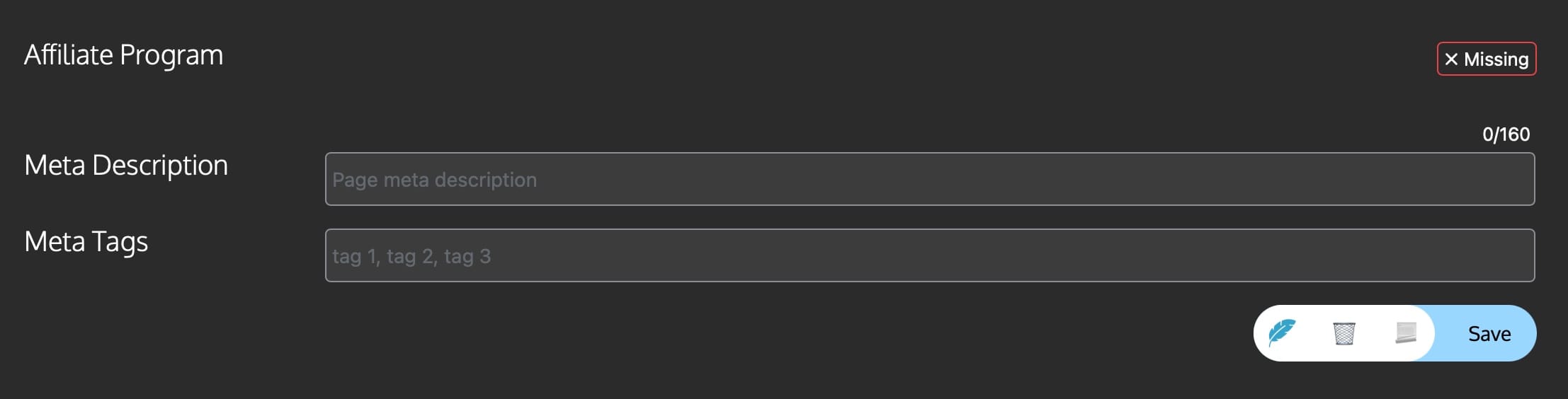
How to Add Meta Manually (Free)
- Go to Tools > Searchability > Page Meta
- Find a page marked “Missing”
- Click the highlighted “Meta Description” or “Meta Tag” box
- Type your custom meta info
- Click Save to Page
(Tip: Keep descriptions under 155 characters so they don’t get cut off in Google.)
How to Generate Meta (Pro Only)
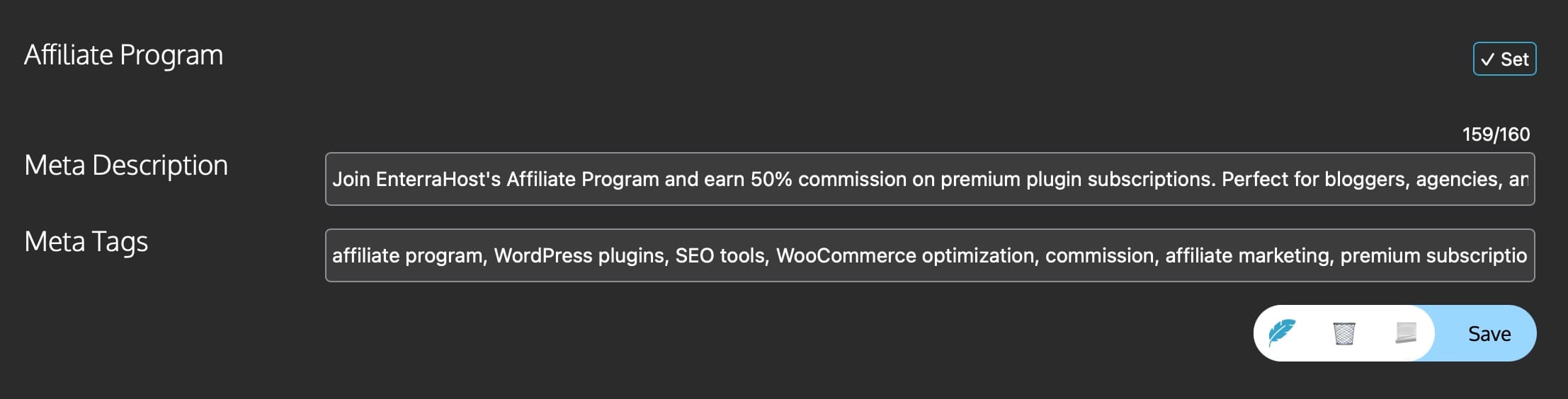
- Go to Tools > Searchability > Page Meta
- Find a page marked “Missing”
- Click Generate next to it
- Review the AI generated description
- Click Save to Page
To generate for all missing pages:
- Click Auto Fill All Meta at the top
- Confirm (you’ll see your feather cost)
- Wait a few seconds. Blue Raven handles the rest.
Important Notes
- The Page Meta tool only works for WordPress pages (like Home, About, Services). For blog posts, use Post Meta.
- While meta keywords don’t impact Google ranking anymore, Blue Raven still includes them for compatibility with other systems. The real focus is your meta description the text that appears in search results and convinces people to click.
- AI generated descriptions pull from your page’s visible content. If your page is mostly images or very short, the suggestion might be vague. Always double check before saving.
Missing meta on key pages is like having a storefront with no sign. People might walk right past. With Blue Raven’s Page Meta tool, you make sure every page from your contact page in Beijing to your pricing page in Berlin shows up clearly in search.
Need help with posts? See the Post Meta KB article.
Working with products? Check out My Products.