How to Use the Post Meta Tool in Blue Raven
WordPress does not include built-in tools for managing meta descriptions on posts. By default, your blog posts whether you run a design studio in Tokyo, a travel blog from Lisbon, or a consultancy in Toronto won’t have custom meta data unless you add it manually or use a plugin.
Blue Raven fills this gap with the Post Meta tool, located under Tools > Searchability. It helps you find missing meta descriptions and in the Pro version generate smart, relevant ones based on your actual post content.
What the Post Meta Tool Shows
When you open Post Meta, you’ll see a list of all your published posts. For each one, Blue Raven displays:
- Post title
- Current meta description if any
- Status: “Has meta,” “Missing meta,” or “Truncated” (if it’s over about 155 characters, the typical display limit in search results)
You can:
- Search by post title
- Filter to show only posts with missing meta descriptions
This works on any WordPress site. No WooCommerce required. (Note: Product meta is managed separately under My Products.)
Free vs Pro Capabilities
Blue Raven Free
- Shows which posts are missing meta descriptions
- Does not generate suggestions, you’ll need to add them manually in Blue Raven
Blue Raven Pro
- All Free features plus
- One click generated meta descriptions and tags based on your post content
- Option to generate meta for one post at a time or generate all missing meta in one go
Each generation costs 5 feathers. You can edit the result before saving, or use it as is.
Post and Page Meta are Optional and to ensure there are no conflicts (you may have other plugins that do this for you) the feature needs to be enabled by simply enabling the Switch On Site Meta slider on the Post Page
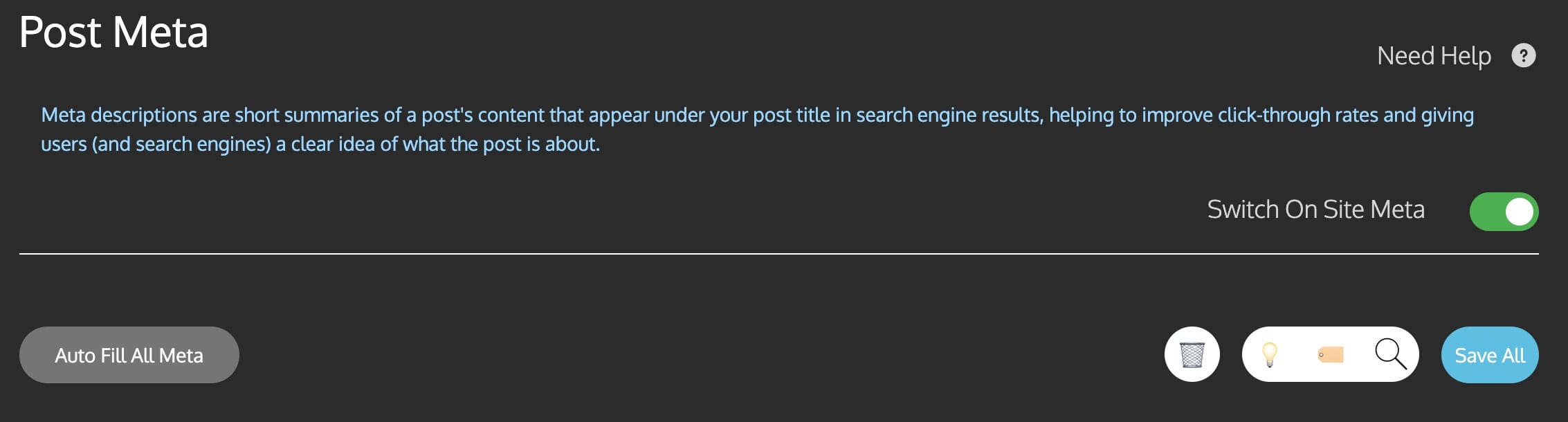
How to Generate a Meta Description (Free)
- Go to Tools > Searchability > Post Meta
- Find a post marked “Missing”
- Click highlighted “Meta Description” or “Meta Tag” box
- Manually fill in your Meta information
- Click Save to Post to apply it
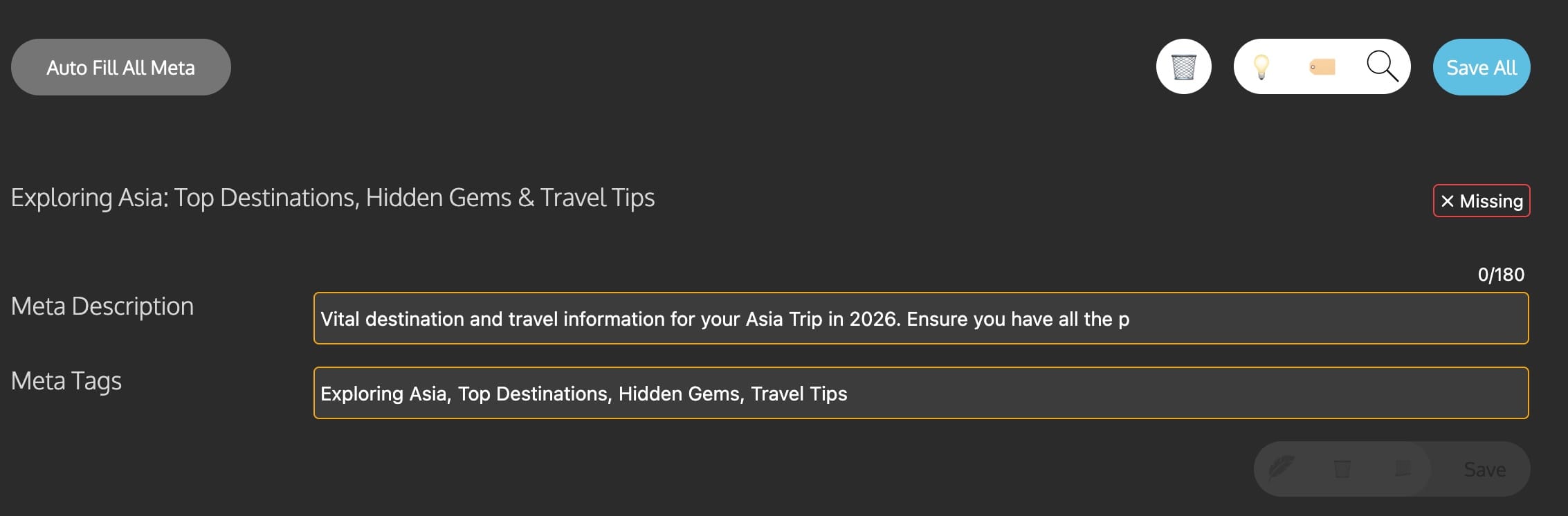
How to Generate a Meta Description (Pro Only)
- Go to Tools > Searchability > Post Meta
- Find a post marked “Missing”
- Click Generate next to it
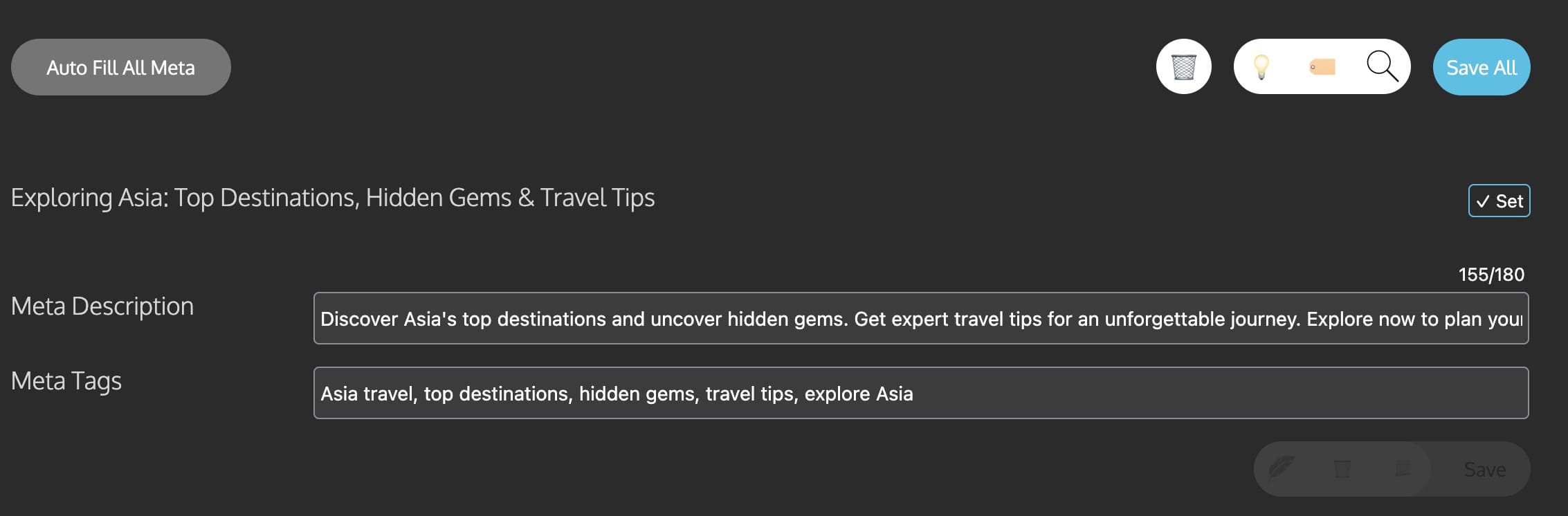
- Review the generated description
- Click Save to Post to apply it
To generate meta for all missing posts:
- Click the Auto Fill All Meta button at the top
- Confirm the action (you’ll see a feather cost estimate)
- Wait a few seconds Blue Raven processes them in the background, the more there are the longer it will take
Important Notes
- The Post Meta tool only handles posts. For pages, use Page Meta (Tools > Searchability > Page Meta)
- Meta tags like keywords are no longer really used by major search engines for ranking, Blue Raven focuses on the meta description the part that shows in search results and affects click through rates, but we also ensure tags are still used.
- Generated descriptions are based solely on your post’s visible content. If your post is very short or lacks clear context, the suggestion may be generic. Always review before saving.
If your site relies on organic traffic from a bakery in Bangkok to a tech newsletter in Berlin missing meta descriptions mean missed clicks. The Post Meta tool helps you spot the gaps fast and fill them with confidence.
Need help with product meta? See the My Products KB article.