Main Schema – Blue Raven Knowledge Base
The Main Schema tool (found under Blue Raven > Tools > Searchability > Main Schema) lets you add structured data about your entire website or business directly to your site’s HTML. This helps search engines like Google better understand who you are, what you do, and how users can connect with you.
Unlike basic schema that WordPress or e-commerce plugins might add for individual posts or products, site-wide organization schema is often missing even in popular SEO tools. Blue Raven fills that gap.
What Is Schema?
Schema (or Schema.org markup) is a standardized way to describe your content to search engines using structured data. When added to your site, it can help enable rich results in search like business info, logos, contact details, or service areas appearing directly in Google.
The Main Schema tool focuses on Organization or LocalBusiness schema, which represents your entire site, not just single pages.
Why Add Site-Wide Schema?
- Improves search appearance: Google may show your logo, slogan, or social links in search results.
- Clarifies your identity: Helps search engines distinguish your official site from others with similar names.
- Supports Knowledge Panels: Strong organization schema is one factor Google may use when deciding whether to show a Knowledge Panel for your business.
- Enhances credibility: Structured contact info and service areas signal legitimacy.
Note: Schema doesn’t guarantee rich results it simply gives search engines the best possible data to work with.
Main Schema in Blue Raven: Free vs. Pro
✅ Both the free and Pro versions of Blue Raven include the Main Schema tool.
✅ No feathers are used this feature does not rely on AI or token-based actions.
✅ You can enable or disable it independently to avoid conflicts with other SEO plugins.
How to Set Up Main Schema
- In your WordPress dashboard, go to Blue Raven > Tools > Searchability > Main Schema.
- Toggle the “Switch On Site Schema” slider to enable it.
- Fill in the available fields:
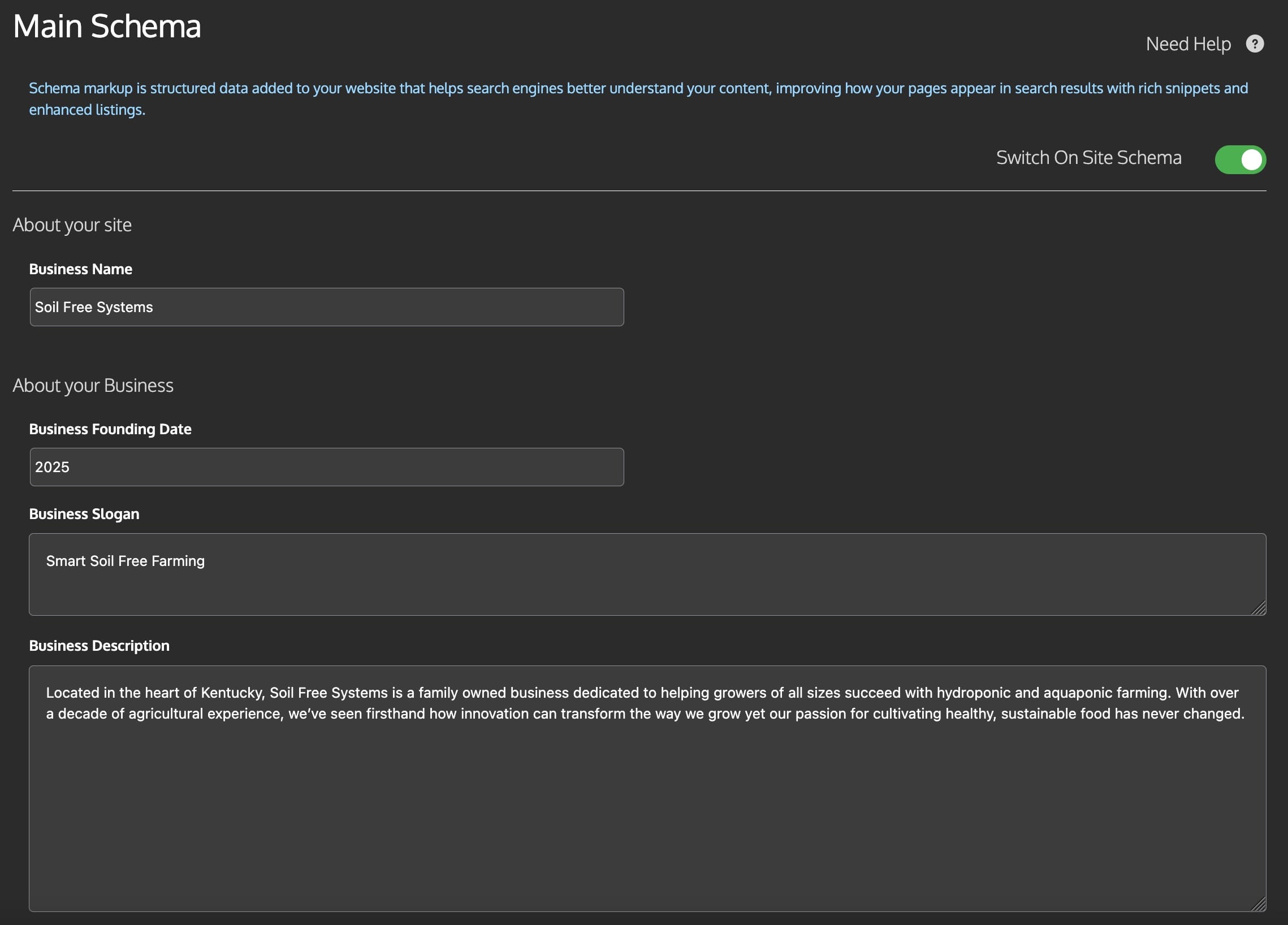
About Your Site
- Business Name: Your official business or site name (e.g., “Soil Free Systems”).
- Business Type: Choose from schema types like
OnlineStore,LocalBusiness,Organization, etc. - Business Founding Date: Year your business was established (e.g.,
2015). - Business Slogan: A short tagline (e.g., “Smart Soil Free Farming”).
- Business Description: A 1–2 sentence overview of your mission or services.
Social Media Links
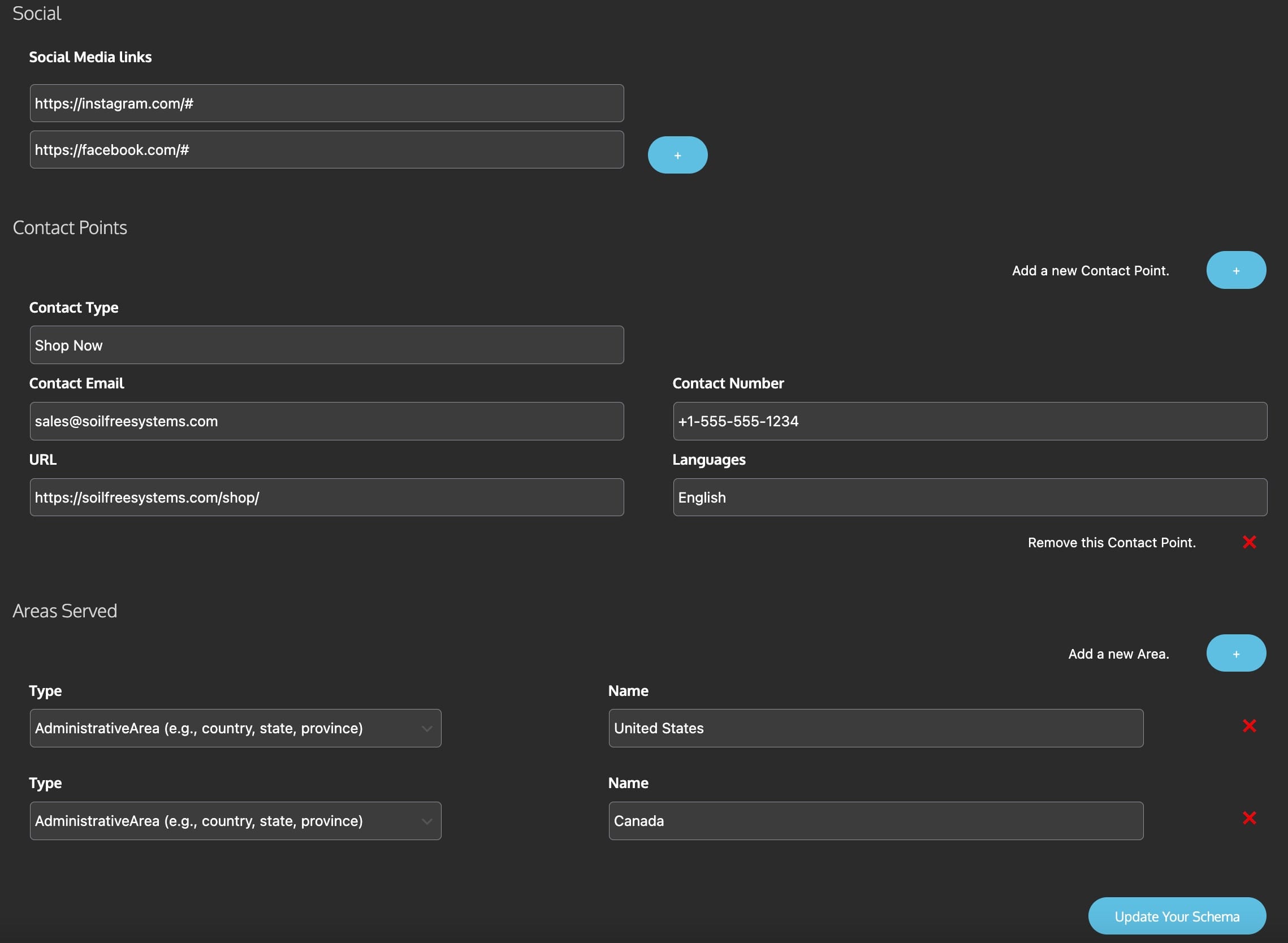
- Add URLs for your public profiles (Facebook, Instagram, LinkedIn, etc.). These appear in the
sameAsproperty. - These “sameAs” links are also a way of telling Search Engines that other content, sites, profiles etc. are linked to your site. This could be a Medium.com or SubStack blog as an example.
Contact Points
- Click “Add a new Contact Point” to define how users can reach you.
- Contact Type: e.g., “Customer Service”, “Sales”, “Shop Now”
- Email, Phone Number, URL
- Languages: e.g., English, Spanish
Areas Served
- Define regions you serve (countries, states, or cities).
- Type: Usually
AdministrativeArea(for countries/states) orCity - Name: e.g., “United States”, “New York”, “Bangkok”
- Type: Usually
- Click Save Settings. Blue Raven will automatically insert properly formatted JSON-LD schema in your site’s
<head>.
Example Output
Once configured, Blue Raven generates clean, valid JSON-LD like this:
<script type="application/ld+json">
{
  "@context": "https://schema.org",
  "@type": "OnlineStore",
  "@id": "https://yourwebsite.com/#organization",
  "name": "Your Business Name",
  "url": "https://yourwebsite.com",
  "logo": {
    "@type": "ImageObject",
    "url": "https://yourwebsite.com/logo.png",
    "width": 300,
    "height": 300
  },
  "description": "Your business description...",
  "slogan": "Your slogan",
  "foundingDate": "2015",
  "sameAs": ["https://facebook.com/you", "https://instagram.com/you"],
  "contactPoint": [
    {
      "@type": "ContactPoint",
      "contactType": "Sales",
      "email": "hello@you.com",
      "telephone": "+1-555-123-4567",
      "url": "https://yourwebsite.com/contact",
      "availableLanguage": "English"
    }
  ],
  "areaServed": [
    {"@type": "AdministrativeArea", "name": "United States"},
    {"@type": "AdministrativeArea", "name": "Canada"}
  ]
}
</script>
Note: Your site logo is pulled automatically from your WordPress site identity settings (Appearance > Customize > Site Identity).
Best Practices
- Use your legal or publicly recognized business name—not a nickname.
- Keep your description factual and concise (1–2 sentences).
- Only list active, public social profiles.
- For Areas Served, be specific: use country names for global businesses, states or provinces for regional ones.
- If you use another SEO plugin (like Yoast or Rank Math), disable their organization schema to prevent duplication.
Troubleshooting
- Schema not appearing on site?
Ensure the “Switch On Site Schema” toggle is enabled and that you’ve saved your settings. - Validation errors in Google’s Rich Results Test?
Double-check that required fields (likenameandurl) are filled. Phone numbers should include country code. - Conflicts with other plugins?
Use Blue Raven’s modular design: disable other plugins’ schema modules, or turn off Blue Raven’s Main Schema if you prefer another tool.
Need Help?
Got a suggestion? Submit a feature request.
Visit Blue Raven Pro > Tools > Searchability > Main Schema to configure your settings.