Quick Post and Page Duplication for WordPress
Enterra Quick Clone streamlines WooCommerce product duplication, enabling one-click cloning of products, variations, and metadata. Designed for stores managing frequent catalog updates or large inventories, this plugin eliminates manual data entry errors while preserving all product relationships.
Installation
Method 1: WordPress Admin (Recommended)
1. Navigate to *Plugins > Add New*
2. Search for “Enterra Quick Clone”
3. Click *Install Now* and activate
Method 2: Manual Upload
1. Download the Enterra Quick Clone plugin ZIP file.
2. Upload to `/wp-content/plugins/` via:
FTP (e.g., FileZilla) or
WordPress Admin (Plugins > Add New > Upload Plugin)
3. Activate under Installed Plugins
Requires WooCommerce to be installed and active.
How to Use
Product Cloning
1. Go to Products > All Products
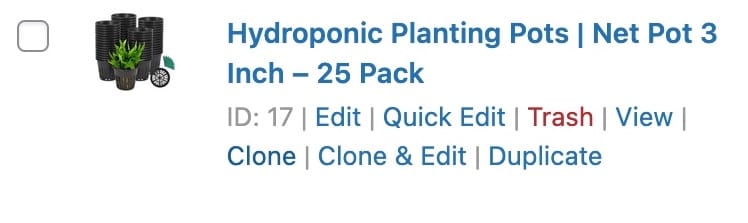
2. Hover over any product and select:
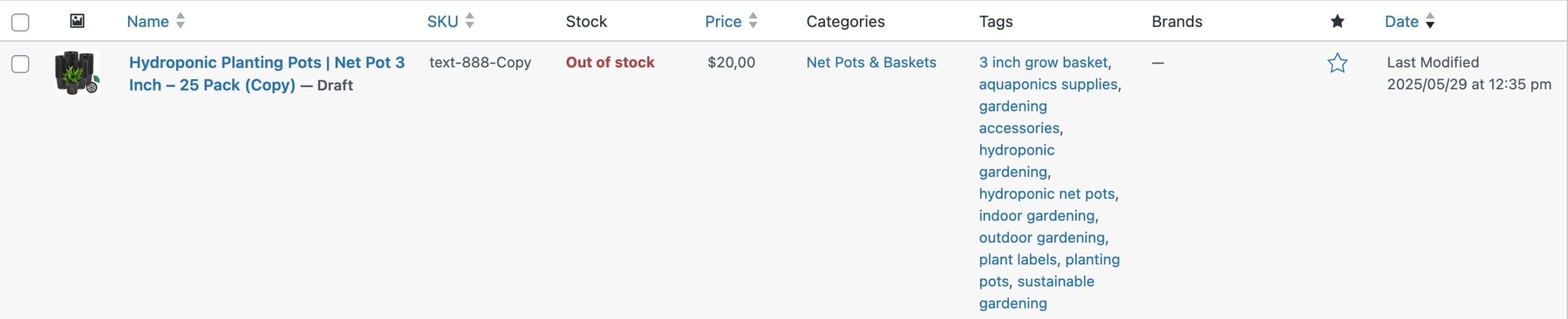
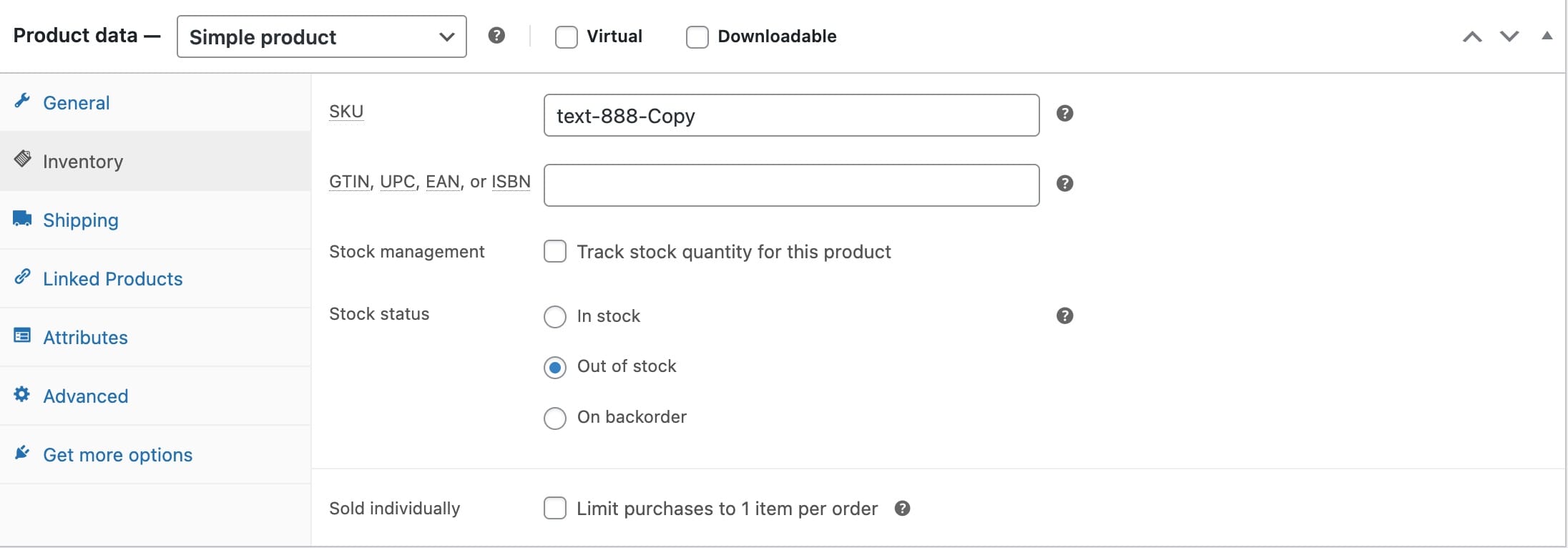
– Clone: Creates identical draft copy (appends “-copy” to SKU)
– Clone & Edit: Duplicates product and opens editor
Cloning Pages
1. Go to Pages > All Pages
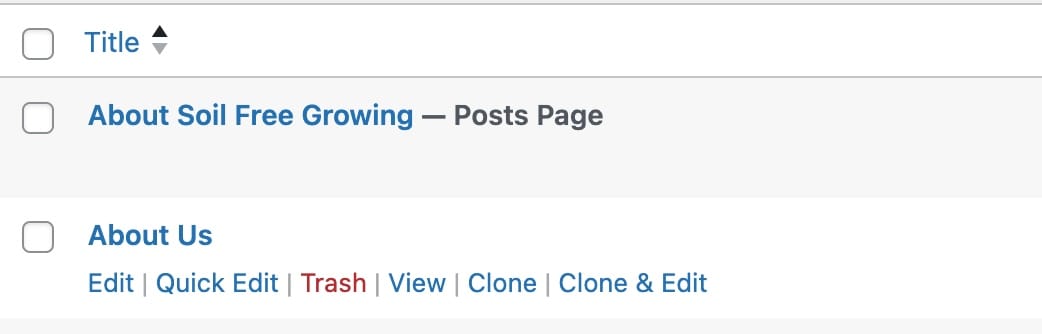
2. Hover over any Page and select:
– Clone: Creates identical draft copy
– Clone & Edit: Duplicates Page and opens editor
Cloning Posts
1. Go to Posts > All Posts
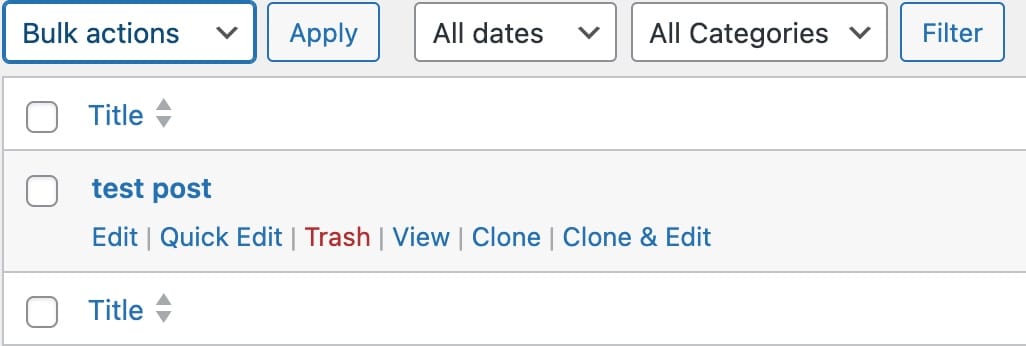
2. Hover over any Post and select:
– Clone: Creates identical draft copy
– Clone & Edit: Duplicates Post and opens editor
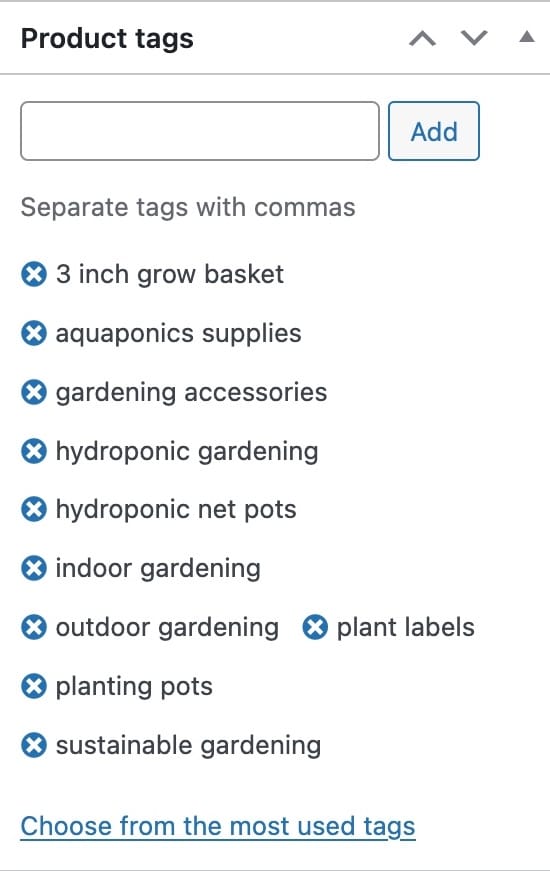
An example of a cloned WooCommerce Product
Advanced Features
– Variations Support: Copies all variations with original pricing/attributes
– Taxonomies: Preserves categories, tags, and custom taxonomies (e.g., brands)
– Metadata: Duplicates custom fields (ACF, meta boxes) and plugin-specific data
Troubleshooting
1. Clone Options Not Visible
– ✅ Verify WooCommerce is active and updated (v7.0+)
– ✅ Confirm user has Admin/Shop Manager permissions
– ✅ Check for JavaScript errors (browser console)
2. Missing Variation Data
– ✅ Ensure parent product is published before cloning
– ✅ Test with only WooCommerce active (disable other plugins)
3. SKU Conflicts
– ✅ Cloned SKUs auto-append “-copy” (e.g., `SKU123` → `SKU123-copy`)
– ✅ Manually edit SKUs if duplicates exist
FAQ
Q: Does this work with [Plugin X]?
A: Compatible with plugins using standard WooCommerce fields/taxonomies. Tested with:
– Advanced Custom Fields (ACF)
– Yoast SEO
– Product Bundles
Q: Can I bulk clone products?
A: Bulk cloning is planned for v2.0 a later stage.
Q: Where are cloned products saved?
A: As drafts in Products > All Products.
Uninstall
1. Deactivate plugin Plugins > Installed Plugins
2. Delete plugin files (no residual data remains)
Go here more information about the Enterra Quick Clone
Support
For additional assistance:
- Visit Enterrahost Support
- Or Log a Feature Request